Showing posts with label authentication. Show all posts

Thursday, November 16, 2006

Configuring LDAP in Weblogic

WebLogic Server does not support or certify any particular LDAP servers. Any LDAP v2 or v3 compliant LDAP server should work with WebLogic Server. The LDAP Authentication providers in this release of WebLogic Server (v9.2) are configured to work readily with the SunONE (iPlanet), Active Directory, Open LDAP, and Novell NDS LDAP servers. You can use an LDAP Authentication provider to access other types of LDAP servers. Choose either the LDAP Authentication provider (LDAPAuthenticator) or the existing LDAP provider that most closely matches the new LDAP server and customize the existing configuration to match the directory schema and other attributes for your LDAP server. The server comes with the following Authentication Providers, which help to configure different LDAP servers
  • iPlanet Authentication provider
  • Active Directory Authentication provider
  • Open LDAP Authentication provider
  • Novell Authentication provider
  • generic LDAP Authentication provider
Follow these steps to configure LDAP in Weblogic:
  1. Choose an LDAP Authentication provider that matches your LDAP server and create an instance of the provider in your security realm.
  2. Configure the provider-specific attributes of the LDAP Authentication provider, which you can do through the Administration Console. For each LDAP Authentication provider, there are attributes that:
    1. Enable communication between the LDAP server and the LDAP Authentication provider. For a more secure deployment, BEA recommends using the SSL protocol to protect communications between the LDAP server and WebLogic Server. Enable SSL with the SSLEnabled attribute.
    2. Configure options that control how the LDAP Authentication provider searches the LDAP directory.
    3. Specify where in the LDAP directory structure users are located.
    4. Specify where in the LDAP directory structure groups are located.
    5. Define how members of a group are located.
  3. Configure performance options that control the cache for the LDAP server. Use the Configuration: Provider Specific and Performance pages for the provider in the Administration Console to configure the cache.

FAILOVER

You can configure an LDAP provider to work with multiple LDAP servers and enable failover if one LDAP server is not available. For this, Change the Host attribute in the security_realm > Providers > provider_specific page, to contain a list of hostnames and ports (localhost:389, remotehost:389). When using failover, the Parallel Connect Delay and Connection Timeout attributes have to be set for the LDAP Authentication provider:
  • Parallel Connect Delay—Specifies the number of seconds to delay when making concurrent attempts to connect to multiple servers. An attempt is made to connect to the first server in the list. The next entry in the list is tried only if the attempt to connect to the current host fails. This setting might cause your application to block for an unacceptably long time if a host is down. If the value is greater than 0, another connection setup thread is started after the specified number of delay seconds has passed. If the value is 0, connection attempts are serialized.
  • Connection Timeout—Specifies the maximum number of seconds to wait for the connection to the LDAP server to be established. If the set to 0, there is no maximum time limit and WebLogic Server waits until the TCP/IP layer times out to return a connection failure. Set to a value over 60 seconds depending upon the configuration of TCP/IP.

NOTE
If an LDAP Authentication provider is the only configured Authentication provider for a security realm, you must have the Admin role to boot WebLogic Server and use a user or group in the LDAP directory. You can either create an Administrators group in the LDAP directory, and include your user in that group, or use an existing group and add the group to the admin role in the WebLogic Administration Console. For more information refer to Weblogic documentation: Configuring LDAP providers.

Tuesday, November 14, 2006

Weblogic: SSO with Windows

An increasing number of intranet-based applications are requiriong Single sign-on (SSO) with between Windows clients (web browser, .NET application etc.) and Java EE servers. The last time, I blogged SSO with IBM WebSphere application server and Windows. To implement this feature, the Microsoft clients must use Windows authentication based on the Simple and Protected Negotiate (SPNEGO) mechanism.

Cross-platform authentication is achieved by emulating the negotiate behavior of native Windows-to-Windows authentication services that use the Kerberos protocol. In order for cross-platform authentication to work, non-Windows servers (WebSphere/WebLogic Servers) need to parse SPNEGO tokens in order to extract Kerberos tokens which are then used for authentication. This post gives a brief overview of the requirements and steps to setup SSO with Windows in Weblogic and provides the resources for further reference:
Requirements
Server
  • Windows 2000 or later installed
  • Fully-configured Active Directory authentication service.
  • WebLogic Server installed and configured properly to authenticate through Kerberos
Client
  • Windows 2000 Professional SP2 or later installed
  • One of the following types of clients:
    • A properly configured Internet Explorer browser. Internet Explorer 6.01 or later is supported.
    • .NET Framework 1.1 and a properly configured Web Service client.
  • Clients must be logged on to a Windows 2000 domain and have Kerberos credentials acquired from the Active Directory server in the domain. Local logons will not work.
Main Steps for Congifuration
Configuring SSO with Microsoft clients requires set-up procedures in the Microsoft Active Directory, the client, and the WebLogic Server domain.
  • Define a principal in Active Directory to represent the WebLogic Server. The Kerberos protocol uses the Active Directory server in the Microsoft domain to store the necessary security information.
  • Any Microsoft client you want to access in the Microsoft domain must be set up to use Windows Integrated authentication, sending a Kerberos ticket when available.
  • In the security realm of the WebLogic Server domain, configure a Negotiate Identity Assertion provider. The Web application or Web Service used in SSO needs to have authentication set in a specific manner. A JAAS login file that defines the location of the Kerberos identification for WebLogic Server must be created.
To configure SSO with Microsoft clients:
  1. Configure your network domain to use Kerberos.
  2. Create a Kerberos identification for WebLogic Server.
    1. Create a user account in the Active Directory for the host on which WebLogic Server is running.
    2. Create a Service Principal Name for this account.
    3. Create a user mapping and keytab file for this account.
  3. Choose a Microsoft client (either a Web Service or a browser) and configure it to use Windows Integrated authentication.
  4. Set up the WebLogic Server domain to use Kerberos authentication.
    1. Create a JAAS login file that points to the Active Directory server in the Microsoft domain and the keytab file created in Step 1.
    2. Configure a Negotiate Identity Assertion provider in the WebLogic Server security realm.
  5. Start WebLogic Server using specific start-up arguments.
References

Tuesday, September 12, 2006

Notes: Declarative Authentication in JEE

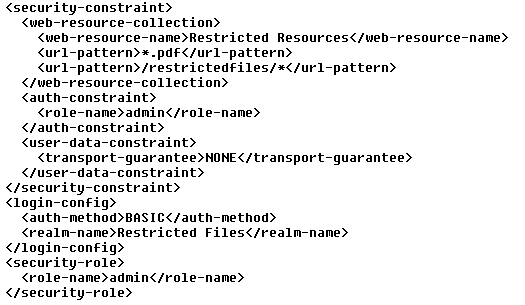
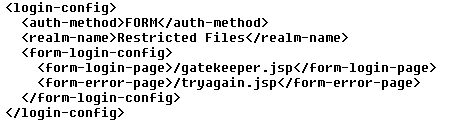
A Java EE web-application can be configured to restrict access to resources via the deployment descriptor (web.xml). Authentication does not need any programming, as it is handled by the container (provided it is properly configured). Here are two ways to implement declarative authentication in Java EE web applications:
Basic Authentication
The web.xml snippet below uses BASIC authentication:

Form Authentication
In the snippet below, the section has been changed to use FORM authentication. This will require an additional login form to be created with j_security_check as it's action.

The following is the sample form:

Other possible values for are DIGEST and CLIENT-CERT.The value of essentially defines whether SSL is required or not. If the value is INTEGRAL or CONFIDENTIAL, then you can assume that an https request is required to access the resource.

Thursday, August 03, 2006

Using jCIFS for Authentication

JCIFS is an Open Source client library that implements the CIFS/SMB networking protocol in 100% Java. CIFS is the standard file sharing protocol on the Microsoft Windows platform (e.g. Map Network Drive ...). This client is used extensively in production on large Intranets. The JCIFS SMB client library enables Java applications to remotely access shared files and directories on SMB file servers(i.e. a Microsoft Windows "share") in addition to domain, workgroup, and server enumeration of NetBIOS over TCP/IP networks. It is an advanced implementation of the CIFS protocol supporting Unicode, batching, multiplexing of threaded callers, encrypted authentication, transactions, the Remote Access Protocol (RAP), and much more. It is licensed under LGPL which means commercial organizations can legitimately use it with their proprietary code(you just can't sell or give away a modified binary only version of the library itself without reciprocation). While the core library is for implementing File Sharing, we can also use it for authentication using LDAP. The following are a sequence of steps to setup jCIFS for authentication:
  1. Download jCIFS from the site.
  2. The following three lines of code are enough to check authentication
    UniAddress uniaddress = UniAddress.getByName(LDAP_Host_Name);
    NtlmPasswordAuthentication ntlmpasswordauthentication = new NtlmPasswordAuthentication(domain, username, password);
    SmbSession.logon(uniaddress, ntlmpasswordauthentication);
  3. If the authentication fails, then the logon method throws an exception.
This type of authentication can also be achieved by using JNDI, jCIFS adds more to this, i.e. jCIFS supports NTLM authentication, i.e. users within the domain are not challenged for username and password (if using Internet Explorer, Firefox always prompts for password). This feature is similar to the SPNEGO TAI provided with WebSphere Application server. To know how to setup NTLM authentication with jCIFS, visit the JCIFS NTLM HTTP Authentication page.

Monday, July 24, 2006

WebSEAL: Secure only login page

login redirects is a new feature in Tivoli Access Manager V5.1 . With this new function, all users are can be to the same configured URL after successful authentication. In order to implement secure login pages followed by secure and unsecure pages, the following steps have to be followed:
  1. Install and configure Tivoli Access Manager for e-business with atleast one WebSEAL Server.
  2. Define an ACL that requires authenticated access for the chosen secured resources. Remember that an ACL that is not attached to protected resources has no impact.
    • acl create secure-access-for-all
    • acl modify secure-access-for-all set any-other rTl
    • acl modify secure-access-for-all set unauthenticatedl
  3. Attach the ACL to the resources requiring authentication. The failure of an unauthenticated request when attempting to access this page will initiate the WebSEAL authentication processing. The precise objects the ACL will be attached to will depends upon the configuration of the environment, namely which host the WebSEAL server is on, and which instance is being used.
    • acl attach /WebSEAL//portal/myportal secure-access-for-all
  4. Configure WebSEAL for forms-based authentication over HTTPS protocol by setting the forms-auth parameter to https in the [forms] stanza of the WebSEAL instance's configuration file, that is
    /etc/webseald-.conf
    Note that this indirectly prevents login over HTTP.
  5. Configure WebSEAL to share the same user session across HTTP and HTTPS protocols. This change is made in the same configuration file as in the preceding step, by setting the value of the use-same-session parameter of the [session] stanza to true.
  6. Configure WebSEAL to automatically redirect to the secure portal page over HTTP. This change is made in the same configuration file as in the preceding step, by setting the value of the login-redirect parameter of the [acnt-mgt] stanza to http://:/portal/myportal. Note that this resource must be accessible to all users, and so it is recommended that the secure-access-for-all ACL described in the first step of this procedure be attached to this resource.
  7. Configure WebSEAL to allow for automatic redirects when using the forms authentication method. This change is made in the same configuration file as in the preceding step, by setting the value of the redirect parameter of the [enable-redirects] stanza to forms-auth.
  8. Customize the WebSEAL error page for Forbidden (HTTP status code 403) to detect if the user has made the request over HTTP, and automatically redirect to HTTPS to login. Add the code fragment from listing 1 at the top of the file
    /www-/lib/errors//38cf0427.html.
  9. Restart the WebSEAL instance. On a machine with multiple instances, ensure that the correct instance is restarted.
Reference:

Monday, July 10, 2006

Single Sign-On with JA-SIG CAS

The JA-SIG Central Authentication Service was originally developed by Yale University. It has since become a JA-SIG project. JA-SIG CAS provides the following features for web applications and also to non web based services which have a web front end
  • Single sign-on across multiple web applications, as well as to core services that aren't necessarily web-based but have a web front end.
  • Allow untrusted services offered by organizations other than ITS to authenticate users without having access to their passwords.
  • Simplify procedures that applications need to follow in order to perform authentication.
  • Localize authentication to a single web application, which makes it easier for users to safeguard their passwords and which lets ITS change authentication logic if necessary without having to change numerous applications.
  • Acegi Security framework provides integration with CAS for implementing Single Sign-On for applications implementing acegi security.

Monday, June 12, 2006

Single Sign-On: Windows and WebSphere

A common requirement when implementing single sign-on solutions within organizations is to be able to share the authentication information betweeen the user desktop and the web application. This requirement becomes more important for intranet applications. WebSphere Application Server provides the capability to acheive Single Sign-On with Windows and Web Applications by providing a trust association interceptor (TAI) that uses the Simple and Protected GSS-API Negotiation Mechanism (SPNEGO) to securely negotiate and authenticate HTTP requests for secured resources in WebSphere Application Server. When the SPNEGO TAI is initialized, authentication for all the Web Applications on that server goes through the TAI. HTTP users log in and authenticate only once at their desktop and are authenticated (internally) with WebSphere Application Server. The SPNEGO TAI is only visible to the WebSphere administrator who is responsible for ensuring a proper configuration, capacity, and maintenance of the Web environment.
Additional Requirements (Apart from WebSphere Application Server 6.1)
  • Microsoft’s Windows 2000 or Windows 2003 Servers with Active Directory domain and associated Kerberos Key Distribution Center (KDC).
  • Microsoft Internet Explorer Version 5.5 or later, Mozilla Firefox Version 1.0, or any other client application that supports SPNEGO mechanism.

Additional Considerations
  • The LDAP Server used by WebSphere and the Windows Active Directory must be the same for the default configuration, if different, then a custom login module (provided with WAS) must be configured to handle authentication.
  • The end user must configure the Web browser or .NET application to issue HTTP requests that are processed by the SPNEGO TAI.
  • The Web administrator is responsible for configuring the SPNEGO TAI of WebSphere Application Server to respond to HTTP requests of the client.
  • The WebSphere Application Server administrator is responsible for configuring WebSphere Application Server and the SPNEGO TAI for optimum installation performance.
  • Kerberos version 5 is required.
  • RC4-HMAC encryption is only supported when using a Windows 2003 Server as Kerberos key distribution center (KDC) and is not supported with a Windows 2000 Server.

Wednesday, January 25, 2006

Form based authentication - logout

When using form based authentication in a J2EE application, the standard way to logout the user would be to invalidate the user session on the web server. In a simple servlet, the logout steps would look like this:

public void doGet(HttpServletRequest req, HttpServletResponse resp) throws
ServletException, IOException
{
req.getSession().invalidate();
resp.sendRedirect("/myapp/");
}


This is quite simple way for implementing logout. There is also another, easier, way to logout the user when using WebSphere Application Server. All you have to do is have a form with the action set to "ibm_security_logout".
< FORM METHOD=POST
ACTION="ibm_security_logout" NAME="logoutForm" >
Click this button to log out:
< input type="submit" name="logout" value="Logout" >
< INPUT TYPE="HIDDEN" name="logoutExitPage" VALUE="/myapp/" >
< /form >


In the above example, the hidden field "logoutExitPage" is the page the user is sent to after logout.

Saturday, December 10, 2005

Security Attribute Propagation Security Attribute Propagation in WebSphereSecurity attribute propagation provides propagation services using Java serialization for any objects that are contained in the Subject. And since serialization problems can occur when dealing with multiple platforms Websphere application server also offers a token framework that enables custom serialization fucntionality. When a request is being authenticated, a determination is made by the login modules whether this is an initial login or a propagation login.

  1. An initial login is the process of authenticating the user information, typically a user ID and password, and then calling the application programming interfaces (APIs) for the remote user registry to look up secure attributes that represent the user access rights.
  2. A propagation login is the process of validating the user information, typically an Lightweight Third Party Authentication (LTPA) token, and then deserializing a series of tokens that constitute both custom objects and token framework objects known to the WebSphere Application Server.

Trust Associations in WAS

From Websphere Information Center.
http://publib.boulder.ibm.com/infocenter/wasinfo/v5r1/index.jsp?topic=/com.ibm.wasee.doc/info/welcome_ee.html

Popular Posts